open image in lightbox

TIA Portal: OPC UA

1. General

In this article, we will explain the procedure and basis for creating an OPC UA method that communicates with a PLC from a laptop, for example, using an OPC client application. One example of such an application is a solution that can trace and log data from the PLC on an external computer. The UaExpert app provides these functionalities.

The system function blocks "OPC_UA_ServerMethodPre" and "OPC_UA_ServerMethodPost", which implement the OPC UA method, are the central components of an OPC UA method. The use of OPC UA on the PLC can be done in a simpler way that does not involve using methods. More on this will follow.

More details can be found here: Siemens page OPC UA Example project
If you only need to access and modify variables and do not need complex instructions, such as calling methods or functions, skip to Chapter 2.3.

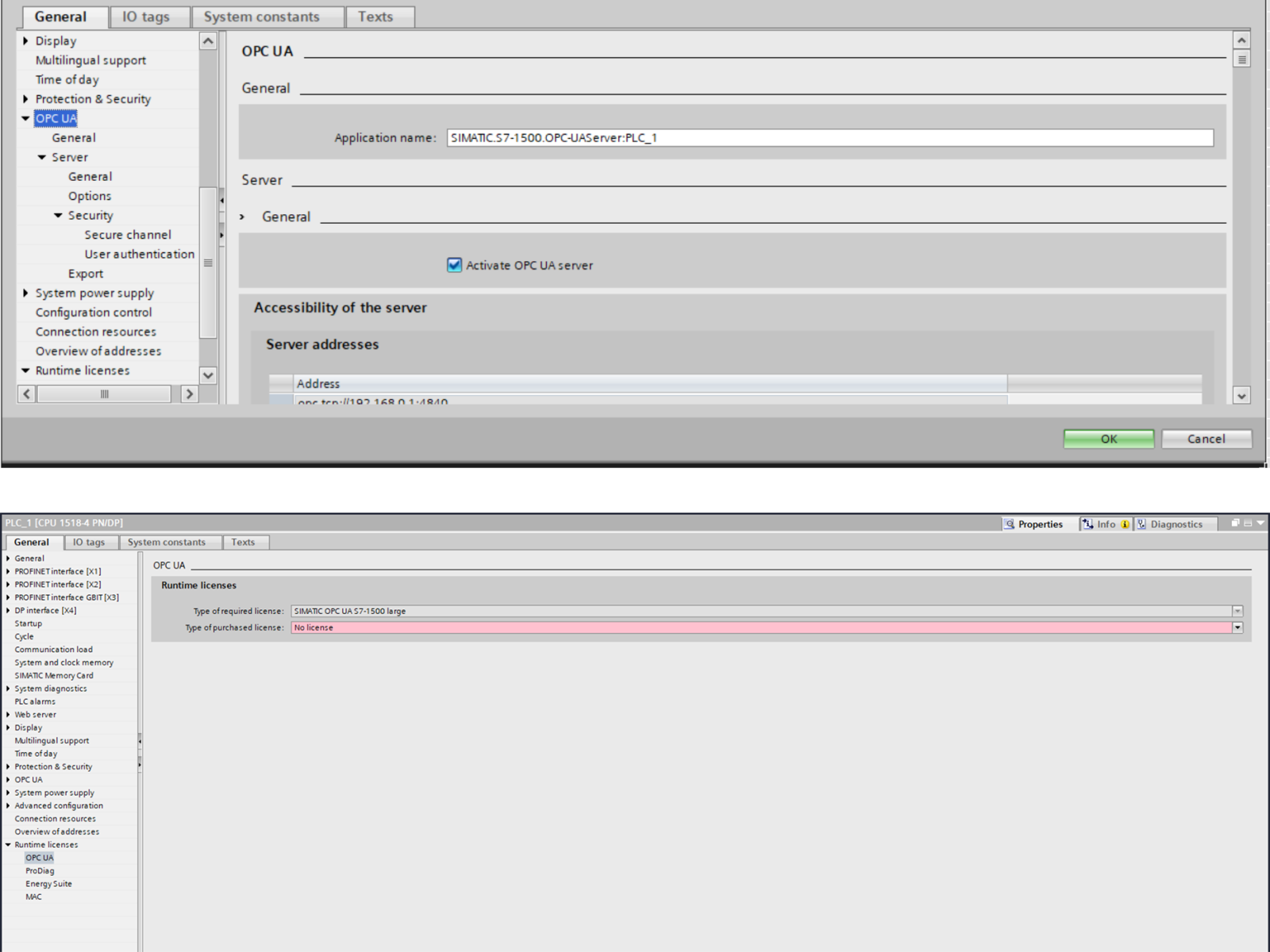
In order to use the OPC UA on the PLC, activate it in the PLC properties under OPC UA, then select the license in Runtime Licenses.

2. PLC as Server

2.1 Example using OPC UA methods

2.1.1 Explanation of the system function blocks

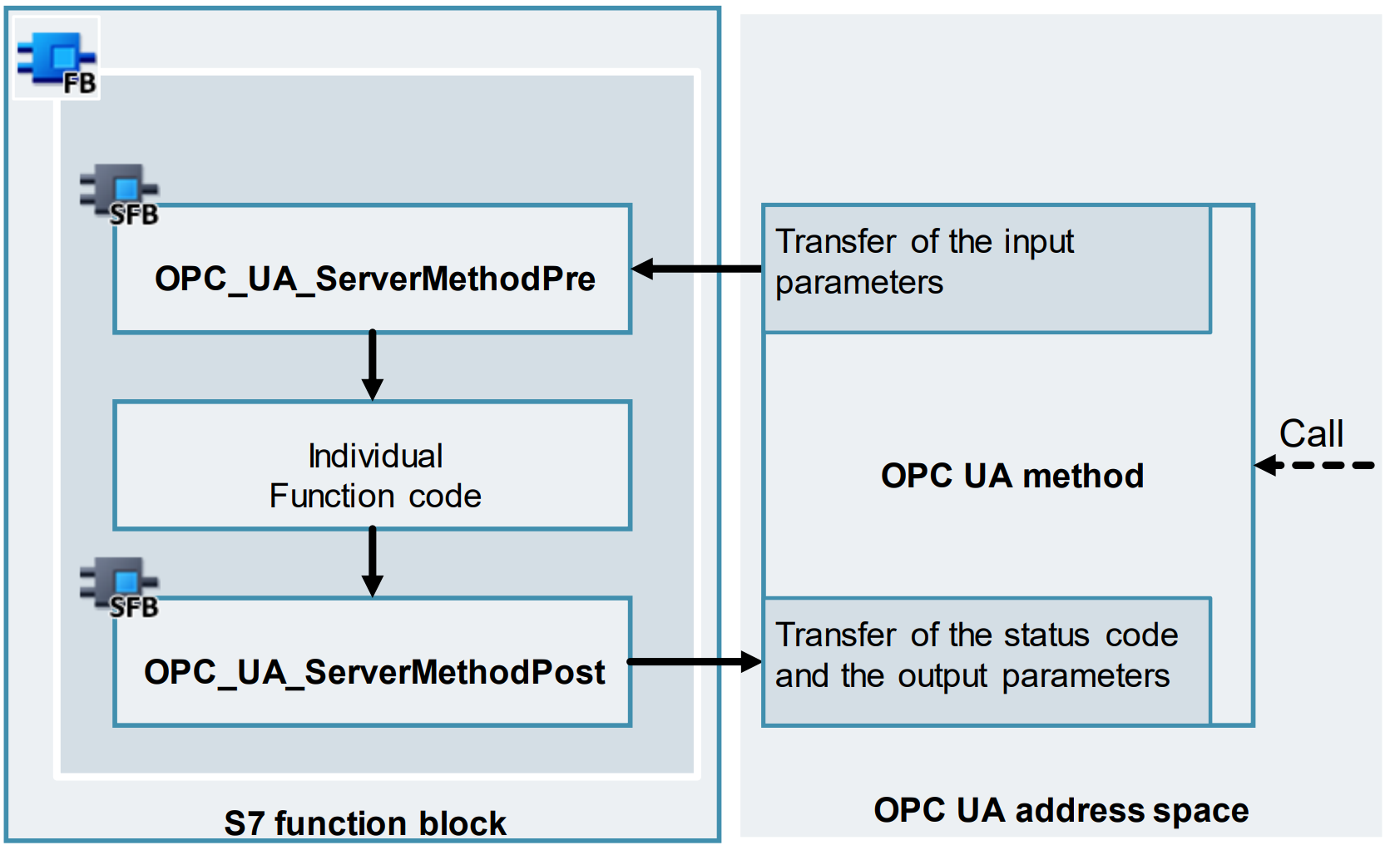
The OPC UA methods are created by calling the system function blocks "OPC_UA_ServerMethodPre" and "OPC_UA_ServerMethodPost". Call these system functions in an S7 function block to implement the S7 function block's functionality as an OPC UA method. The system function blocks can be found in the TIA Portal instruction list under Communication > OPC UA > OPC UA Server.

2.1.2 Functional sequence

When an OPC UA method is called, its input parameters are transferred to the system function "OPC_UA_ServerMethodPre." This function then provides them to the user program. Additionally, a parameter in the function block indicates that the method was called by an OPC UA client. Run your custom function code after the parameter is set.

After processing the function code, transfer the output parameters and status code to the "OPC_UA_ServerMethodPost" system function. Also, set an interface parameter to indicate that the code has been executed. The system function then transmits the output parameters and status code to the OPC UA client.

2.1.3 Interface description of the system function blocks
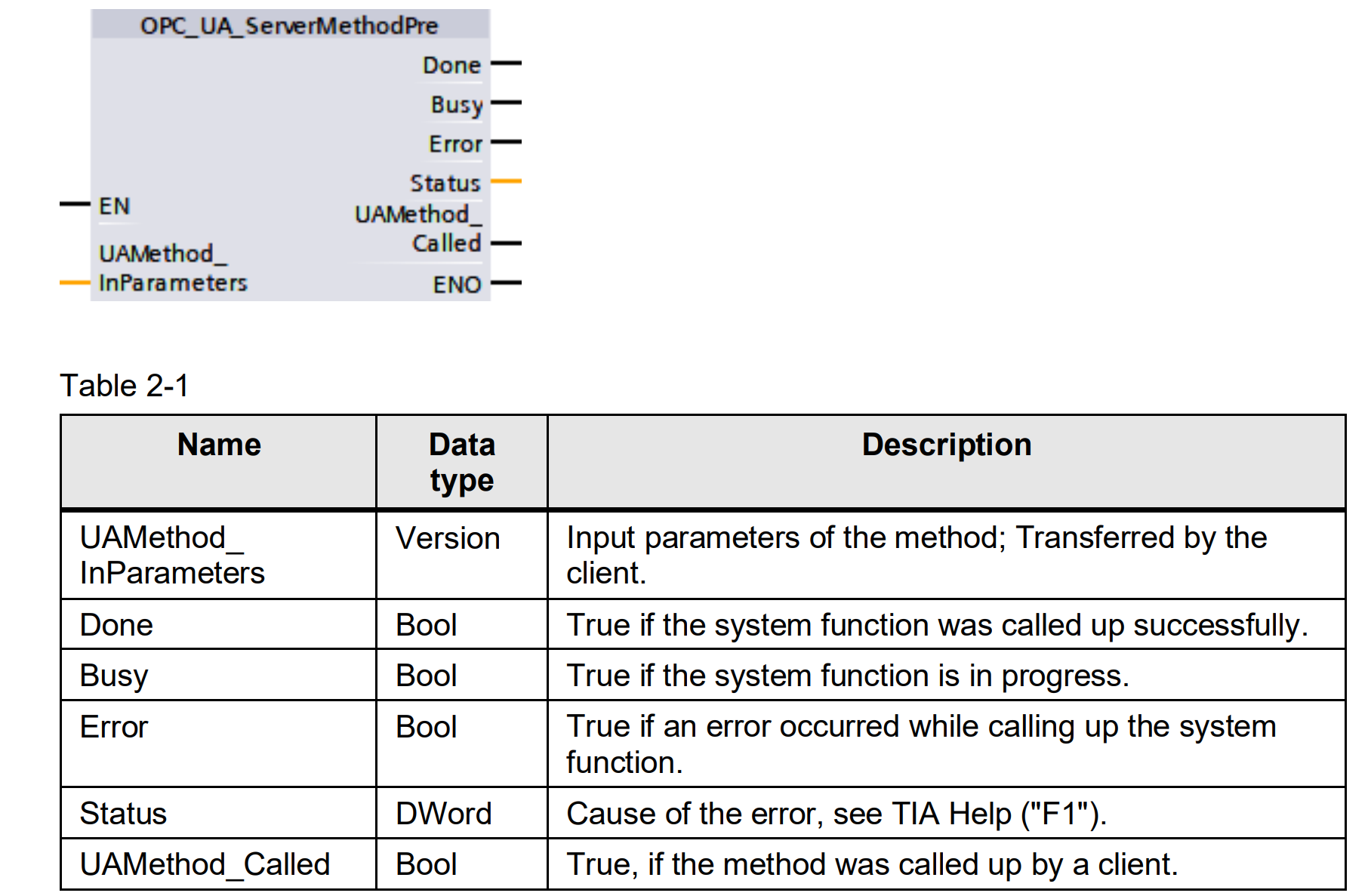
OPC_UA_ServerMethodPre:

The following figure and table explain the interface of the “OPC_UA_ServerMethodPre” system function:

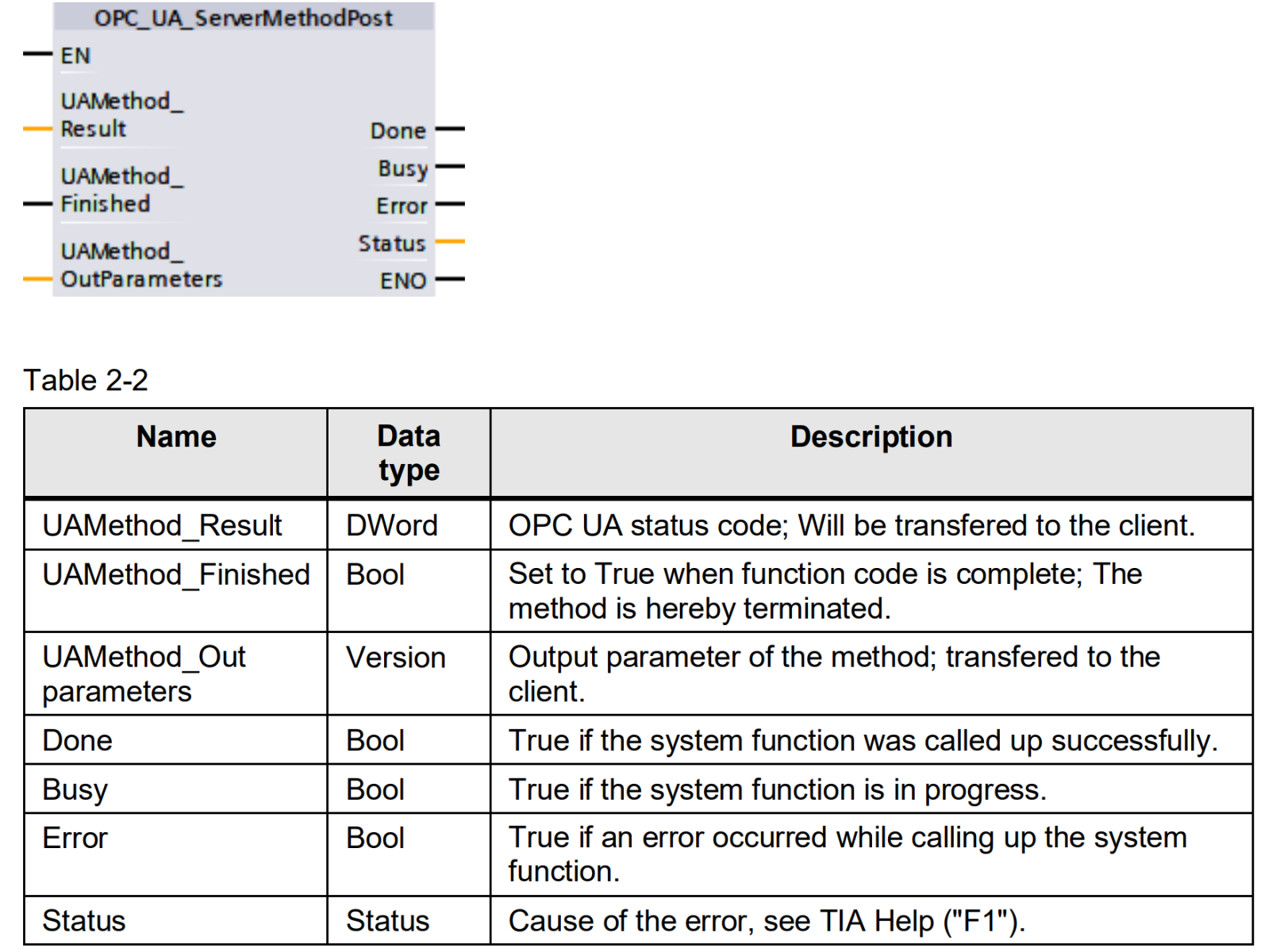
OPC_UA_ServerMethodPost:

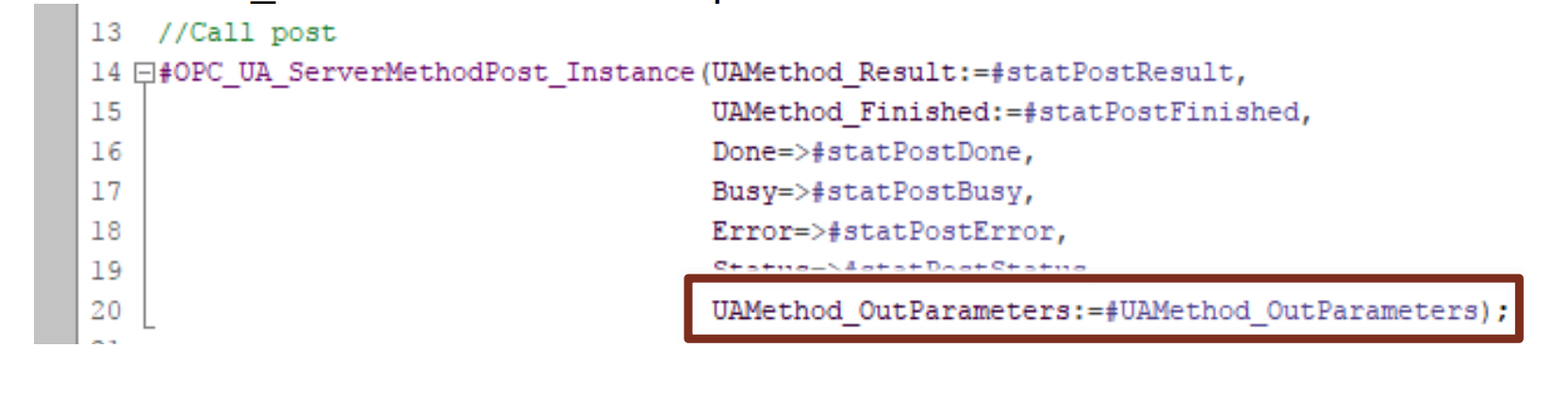
The following figure and table explain the interface of the "OPC_UA_ServerMethodPost" system function:

2.1.4 Creation of the basic framework

Always create a basic framework in the module that is mandatory for the function of the OPC UA method. Perform steps 1 through 4 of the following procedure for each method. Only follow steps 5 through 8 if your method requires input or output parameters. Proceed as follows:

1. Open the function block created in advance.

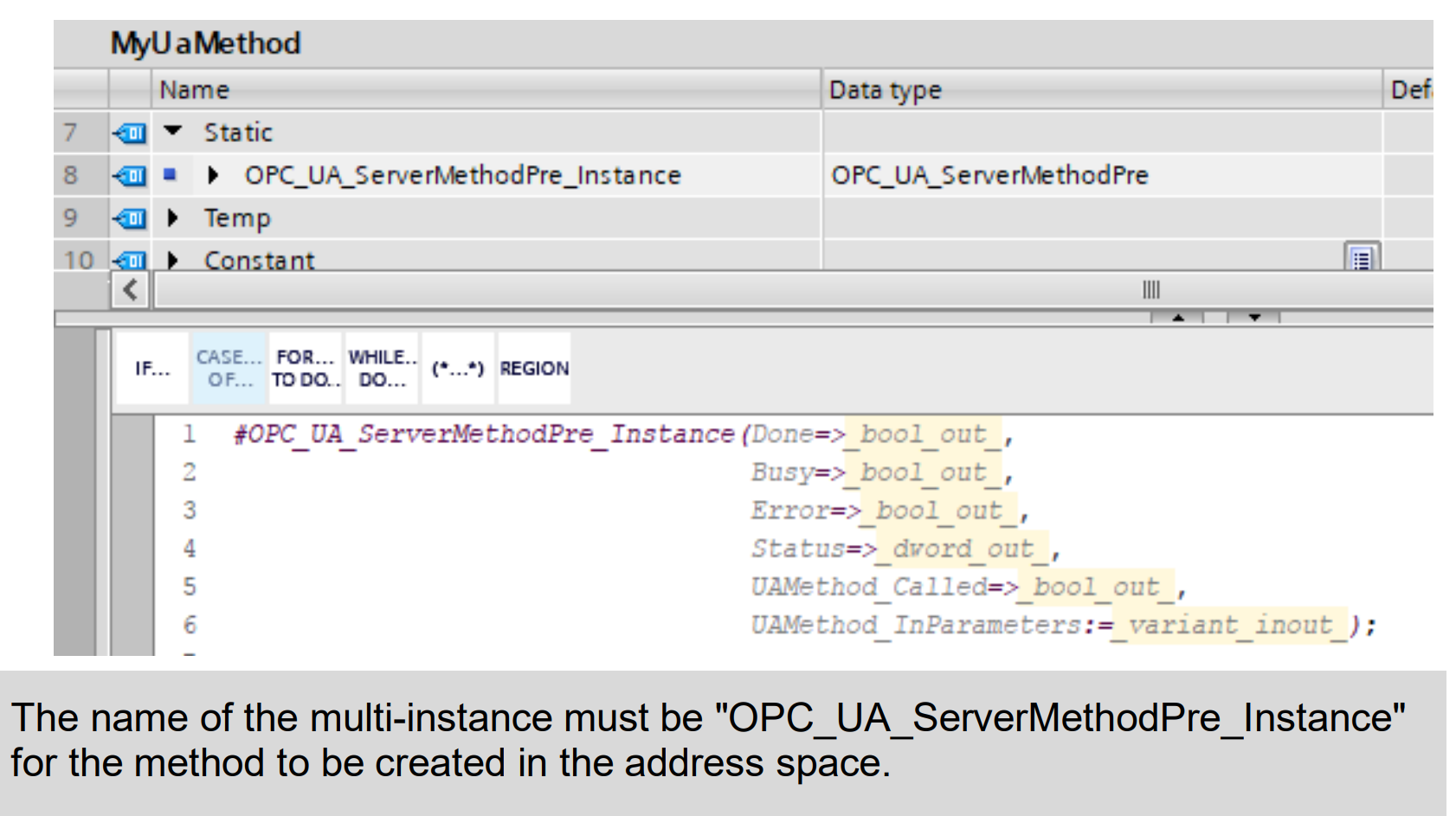
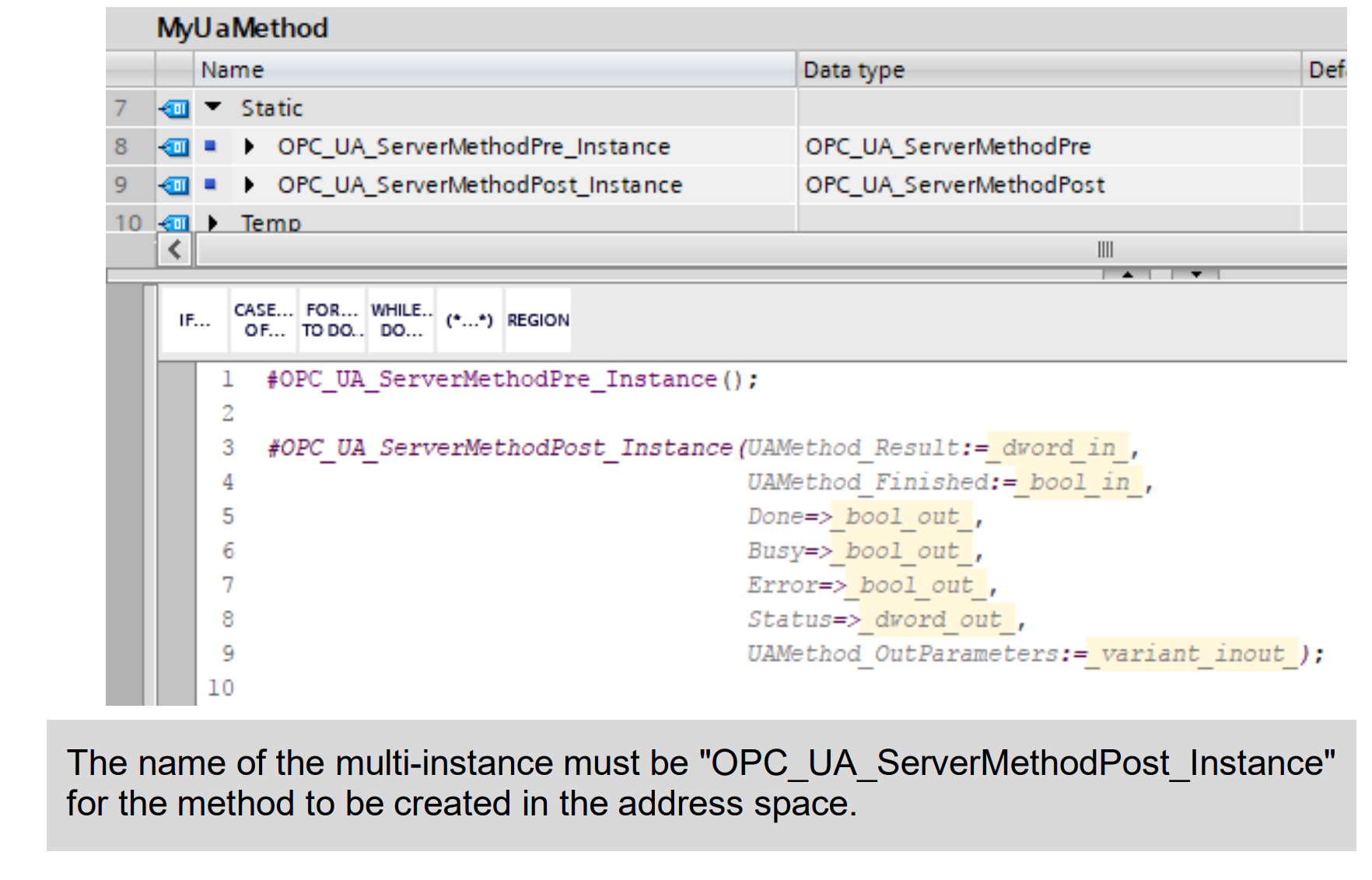
2. Call the "OPC_UA_ServerMethodPre" function in the block. Make sure that the function is created as a "multi-instance".

3. In the block, call the "OPC_UA_ServerMethodPost" function under the pre-function. Make sure that the function is created as a "multi-instance”.

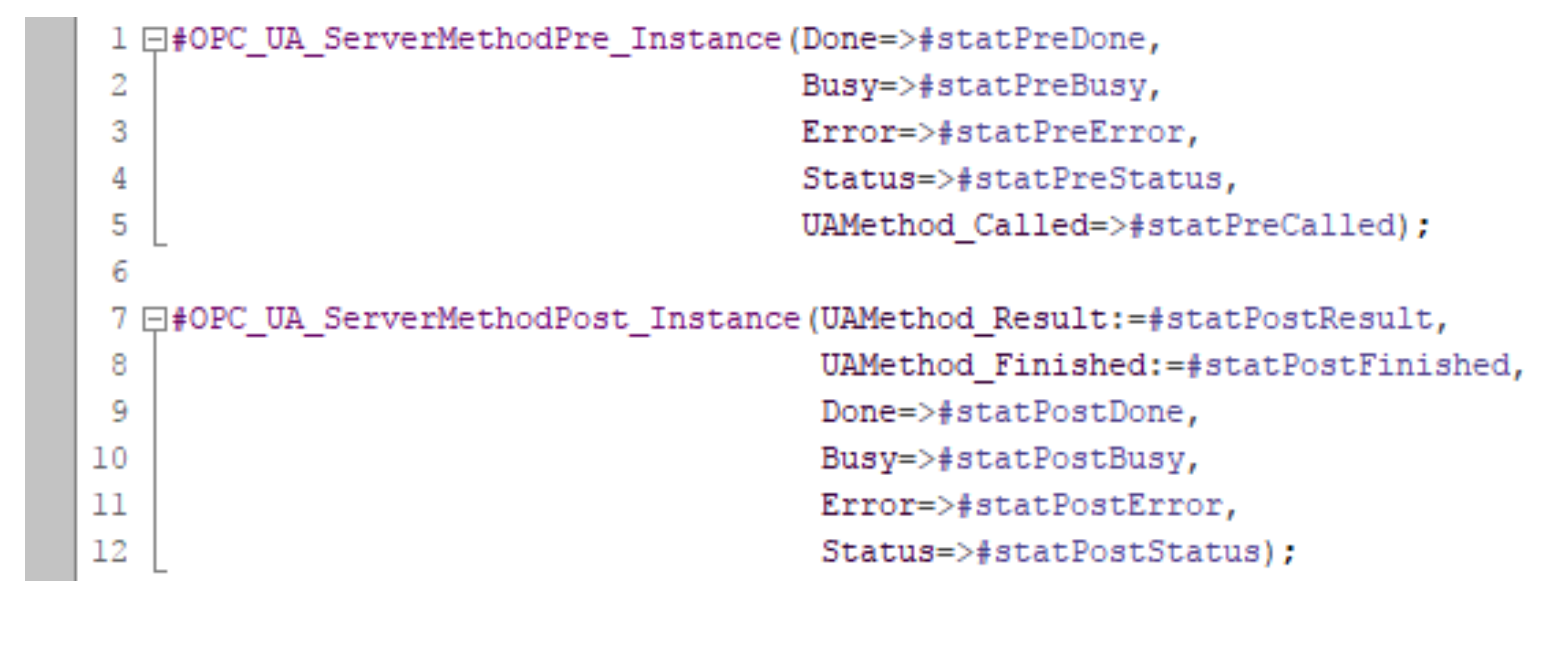
4. Assign suitable variables to the block interfaces of the pre- and post-function. Information about the block interfaces can be found in Chapter 2.1.3.

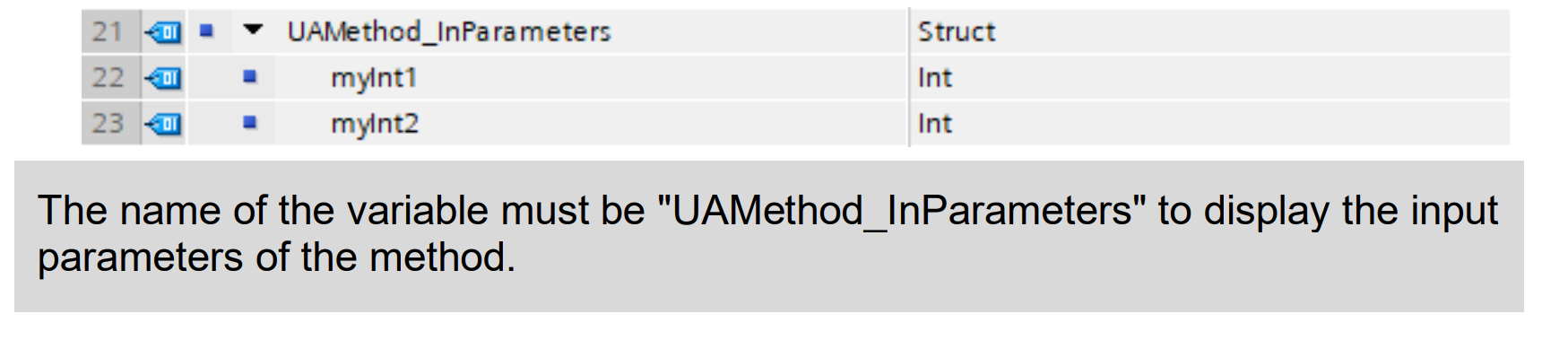
5. To define the input parameters for the OPC UA method, create a variable named "UAMethod_InParameters" of the data type "Struct" or “UDT” in the static area of the block. Within this structure, you define the individual transfer parameters (e.g., "myInt1" and "myInt2" of the "Int" data type).

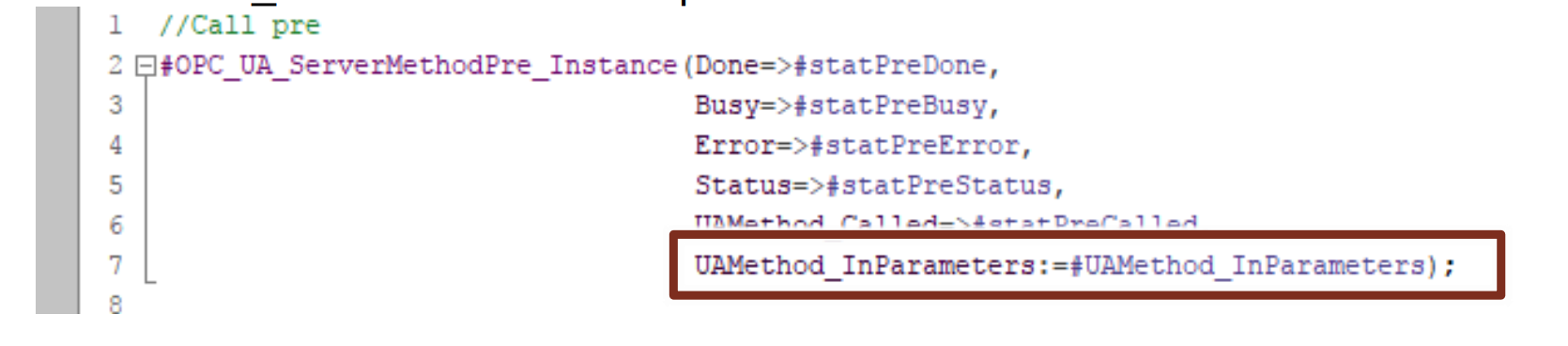
6. Assign the variable "UAMethod_InParameters" to the block interface "UAMethod_InParameters" of the pre-function.

7. To define the output parameters for the OPC UA method, create a variable named "UAMethod_OutParameters" of the data type "Struct" or “UDT” in the static area of the block. Within the structure, define the individual transfer parameters. For example, define "myIntResult" as the data type "DInt".

8. Assign the variable "UAMethod_OutParameters" to the block interface "UAMethod_OutParameters" of the post function.

9. Make sure that the "Accessible from HMI/OPC UA" boxes are checked in the pre- and post-function declarations, as well as in the input and output parameters.

2.1.5 Programming example

To commission the sample project, download the OPC UA Example Project from the Siemens page. Then, download the free UaExpert app. If you are trying to simulate the PLC, use PLCSIM Advanced, as standard PLCSIM does not have OPC UA functionalities.

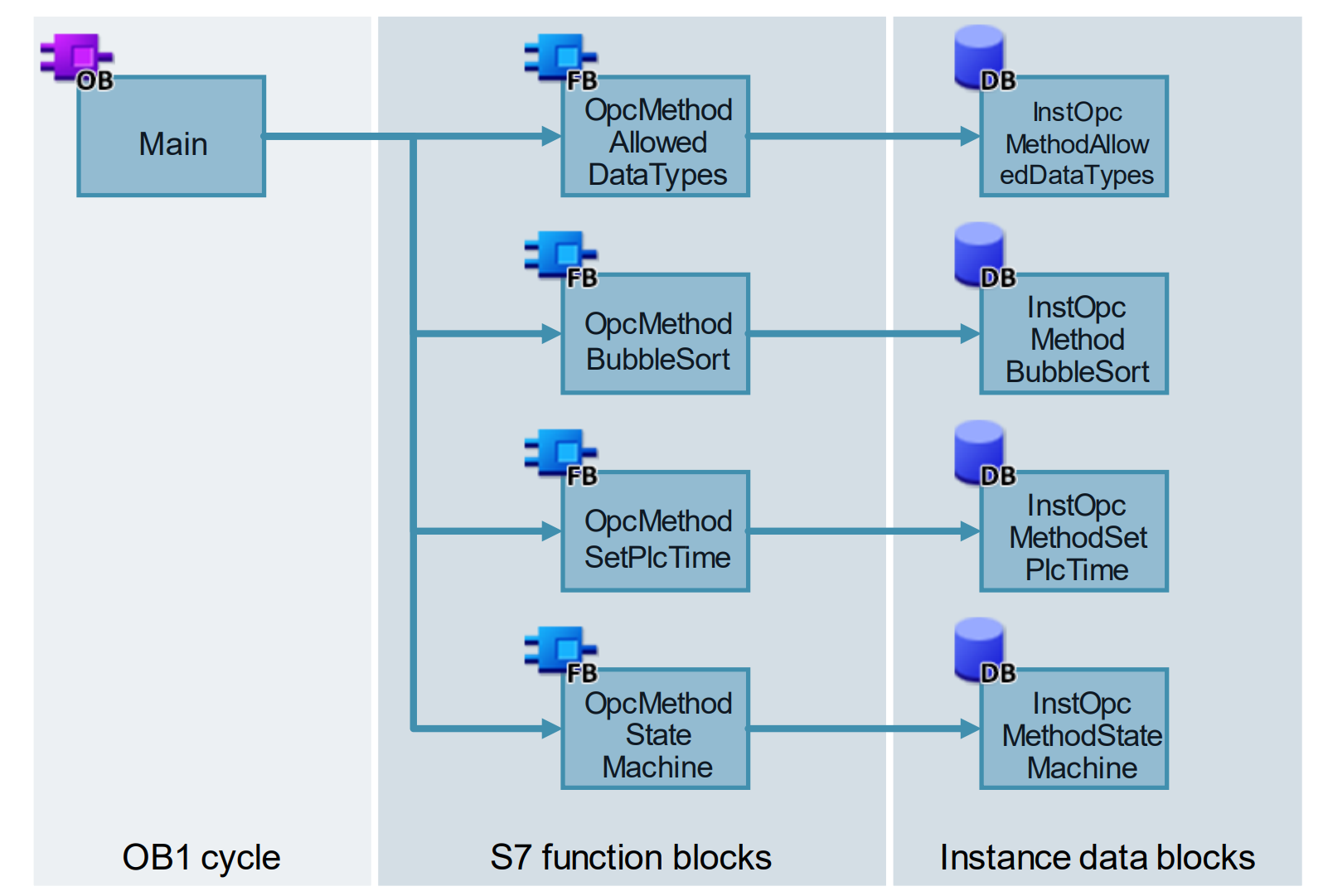
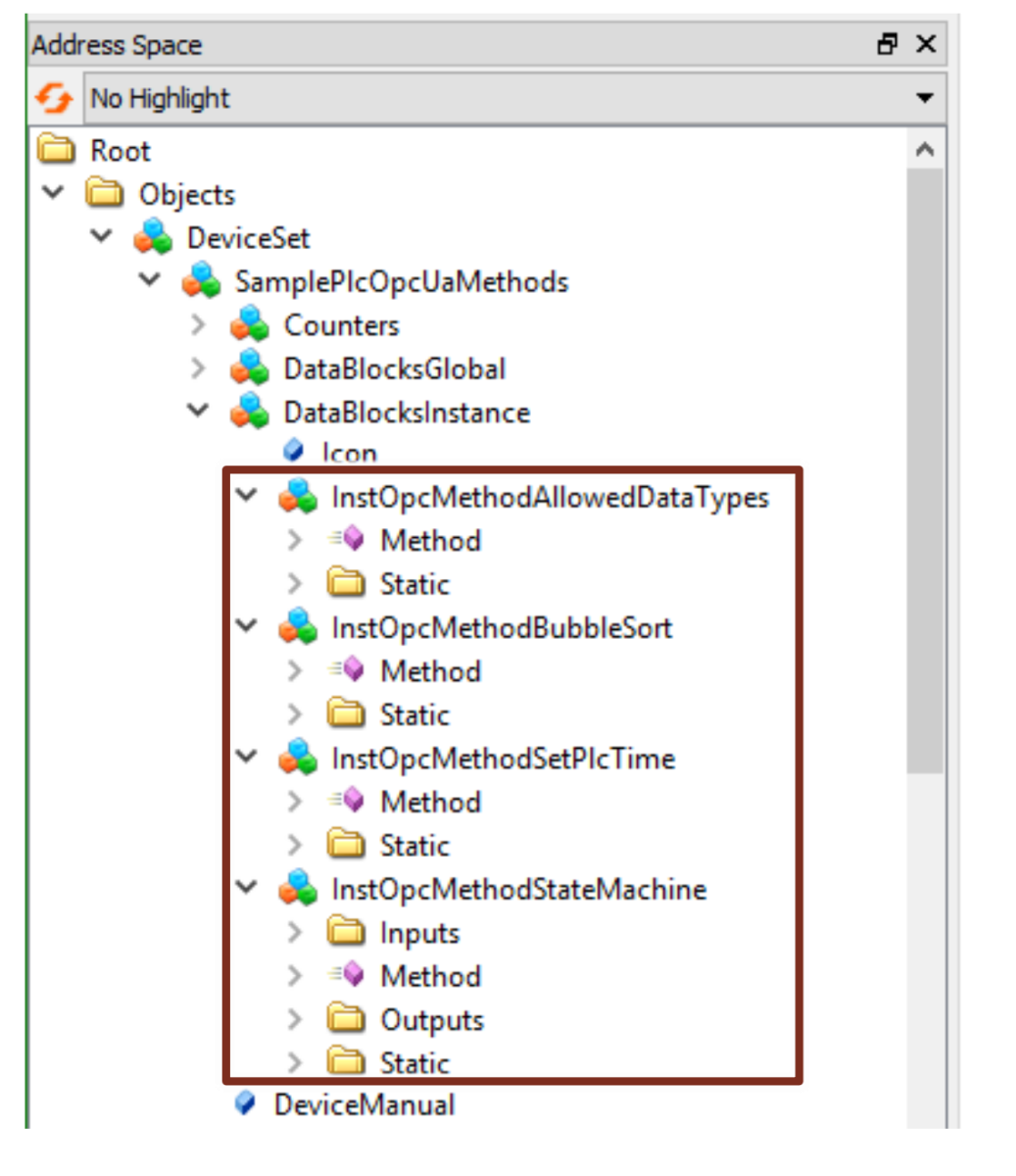
In our example, we have 4 functions that can be called by an OPC UA Client as follows:

  • "OpcMethodAllowedDataTypes": This method contains all permitted data types as input parameters of the method. During execution, the transferred values are provided as output parameters of the method.

  • "OpcMethodBubbleSort": This method uses an "Int" array as an input parameter. The transferred values are sorted by value size, and the result is provided as an output parameter.

  • "OpcMethodSetPlcTime": Use this method to set the PLC time.

  • "OpcMethodStateMachine": This method contains a step sequence that starts when the method is called. The method has no input or output parameters. While the step sequence is being processed, a negative response is returned when the method is called again.

2.1.6 Establishing connection to client

First, connect UaExpert to the server of the PLC:

1. Start the tool "UaExpert".

2. Click on the “Add server” button.

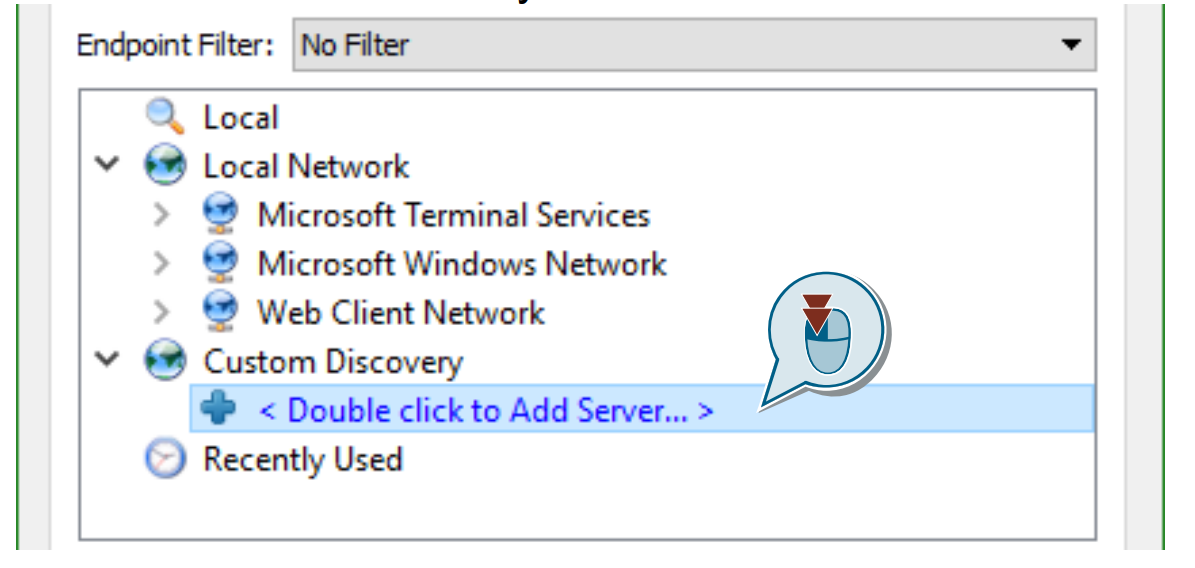
3. Under "Custom Discovery", double click on "Double click to Add Server".

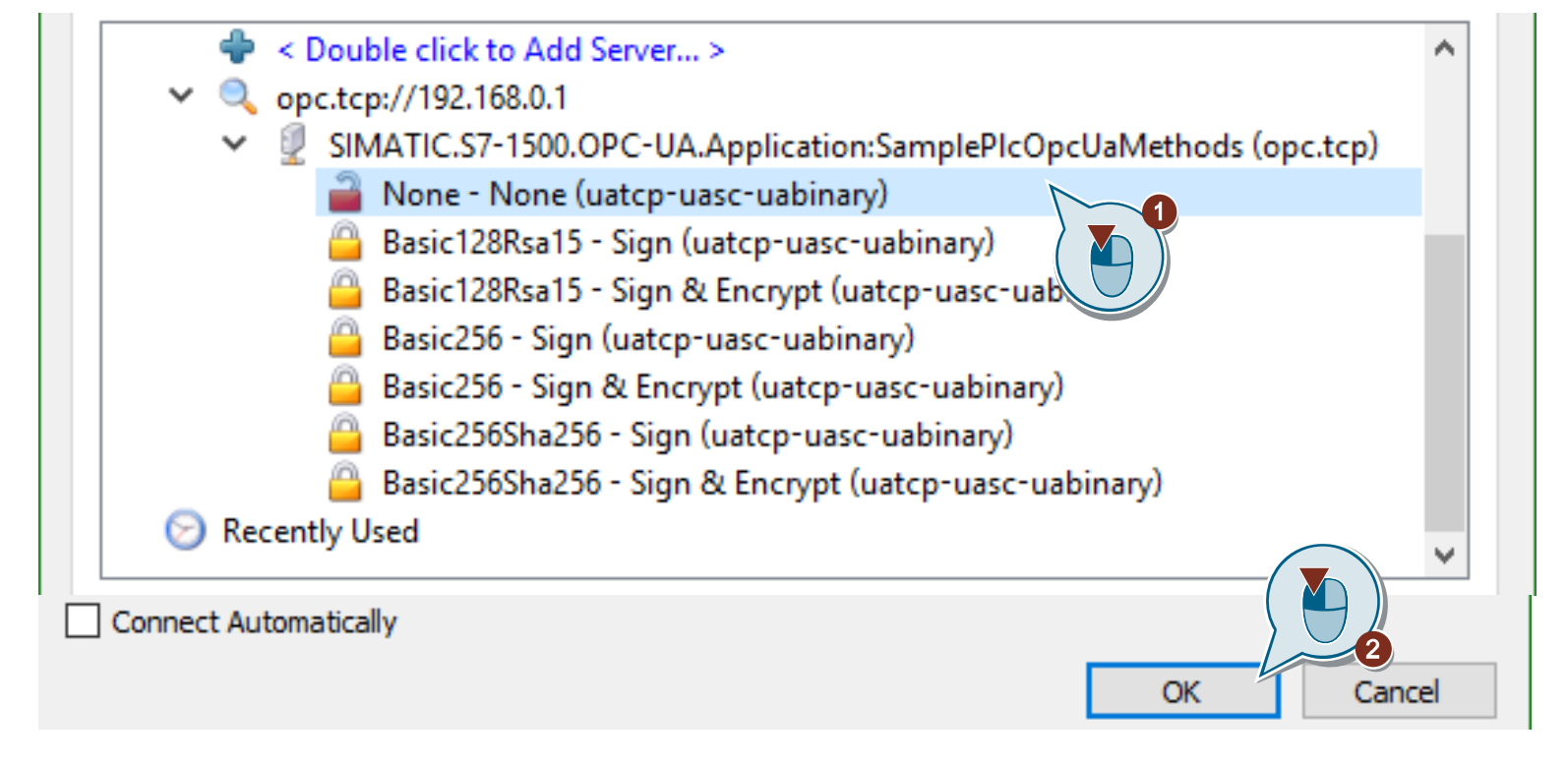
4. Enter the PLC's IP address in the text field of the dialog box that appears, and then click "OK." The IP address can be found under PLC properties in Tia Portal. It is located under the property OPC UA.

5. Select an end point ("None" in this example) and then confirm with "OK".

6. In the project navigation, select the endpoint and click the "Connect Server" button.

Once you have connected to the PLC server, you can call up the methods created in advance:

  • In the “Address Space” area, navigate to Root > Objects > DeviceSet > SamplePlcOpcUaMethods > DataBlockInstance. The OPC UA methods created in advance can be found within the objects of the block instances.

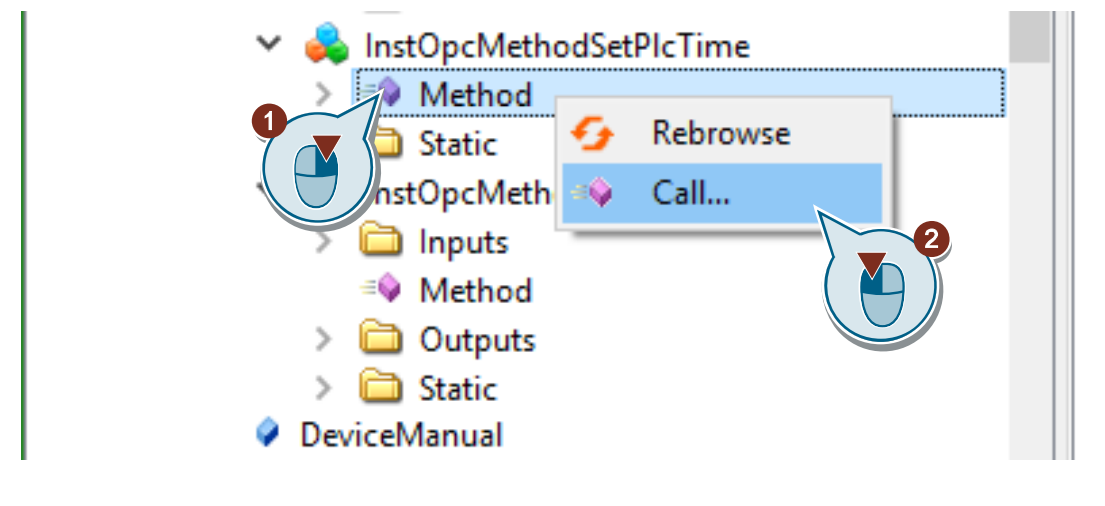
  • Right-click on a method (for example, within the instance of “InstOpcMethodSetPlcTime”), and then click “Call....”.

2.2 Accessing PLC data directly from client

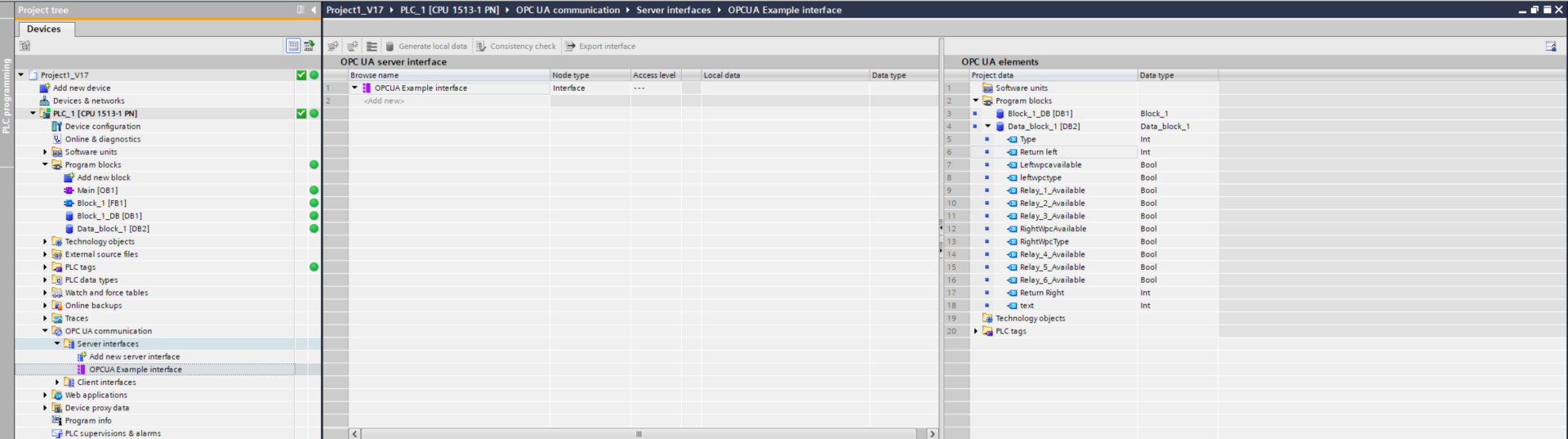
In order to facilitate the navigation to the desired data, we could use an interface to organize the variables. In the project tree under OPC UA communication, select server interfaces and add a new interface. Then, simply drag and drop the variables that we want to manipulate.

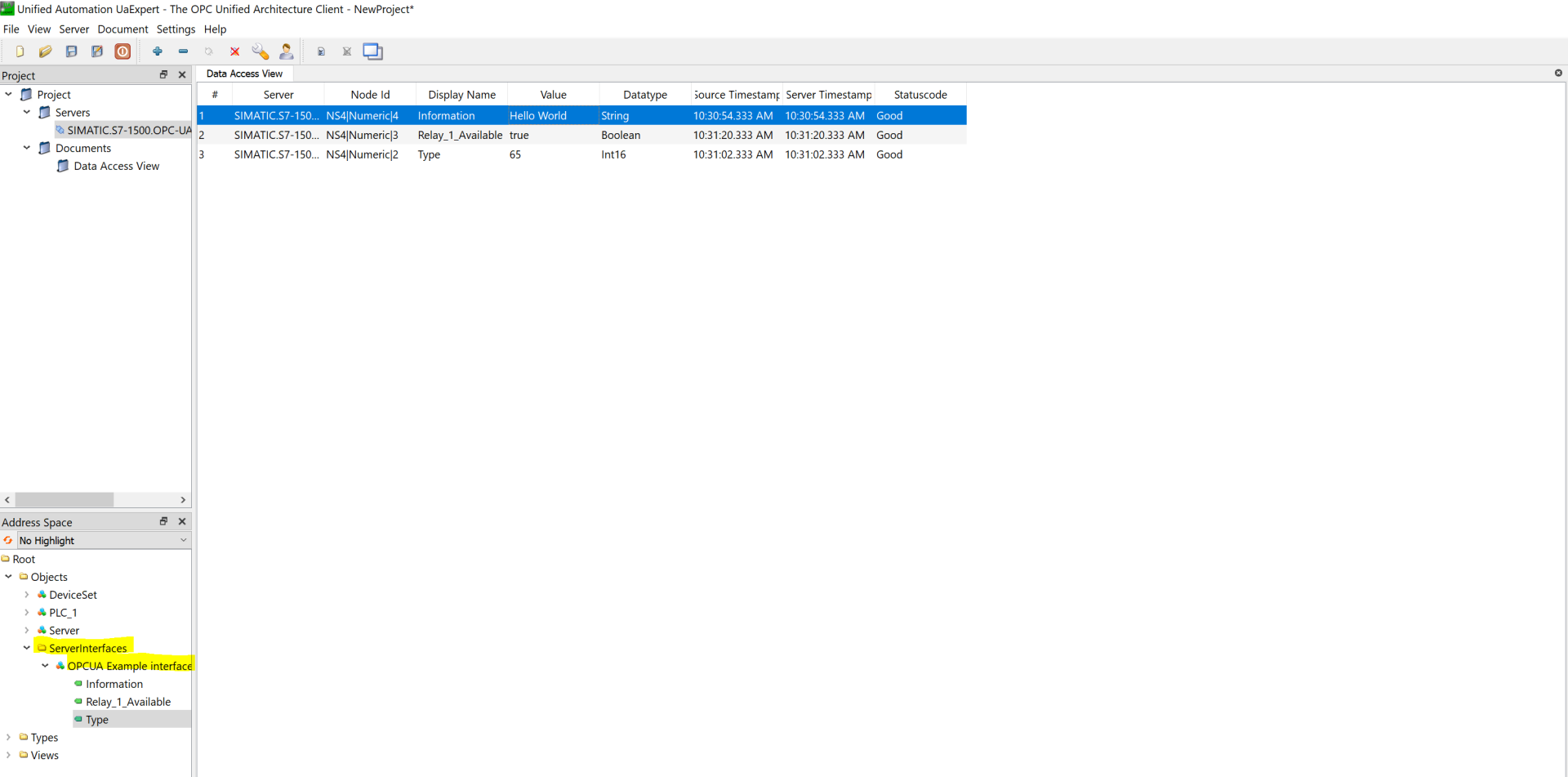
Now switch to the UaExpert app and repeat the steps in 2.6. Establish a connection from the client to connect to the server. After connecting, simply drag and drop the desired variables into the workspace. This allows us to monitor and manipulate the values.

We can also choose the access type for each variable Read/Write.

2.3 Access security

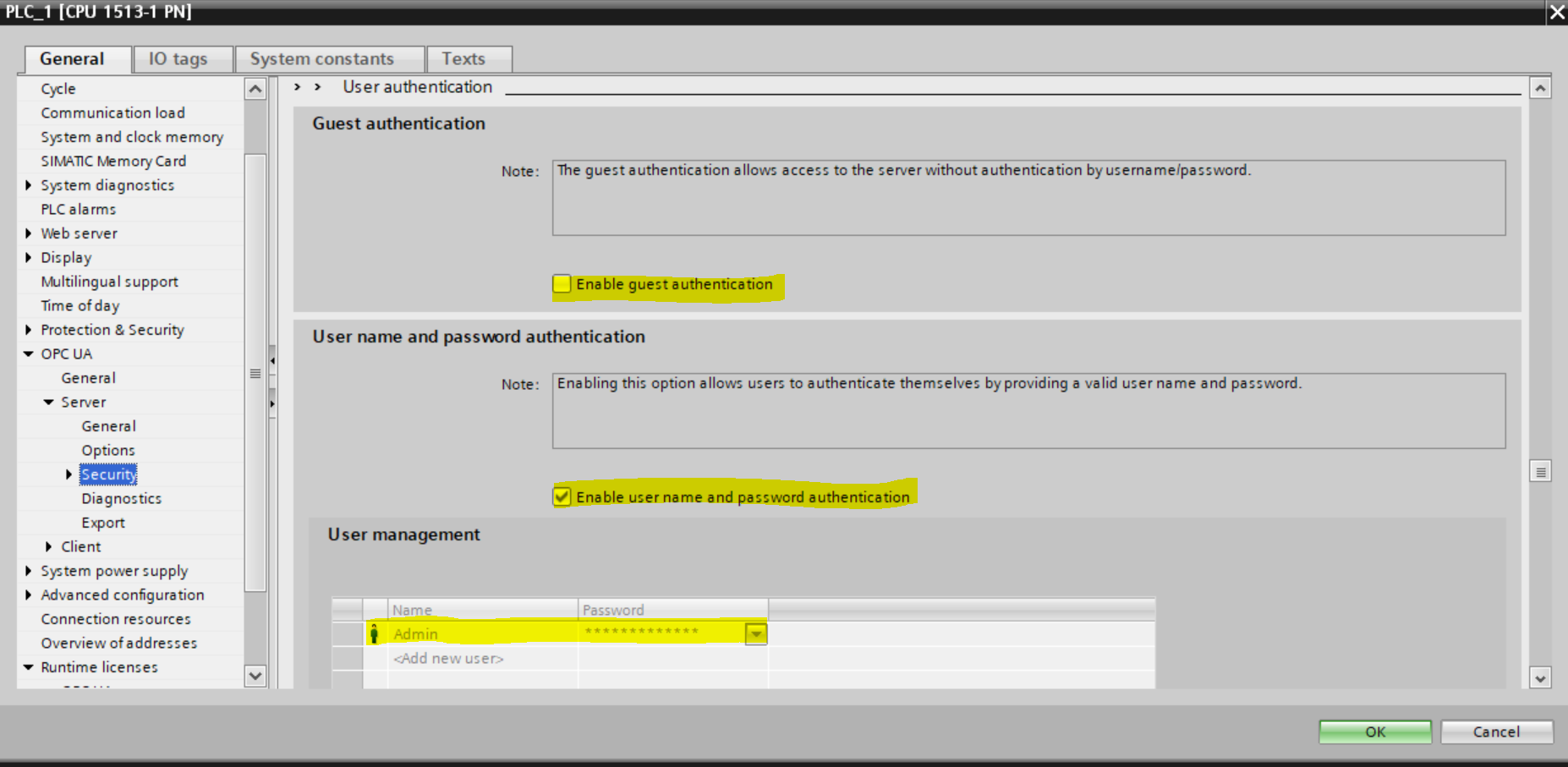
To protect the data on the PLC, the simplest way is to disable guest access and create authorized users. To do this, follow the next steps. Under PLC Properties > OPC UA > Security, disable guest sign-in and enable user and password authentication.

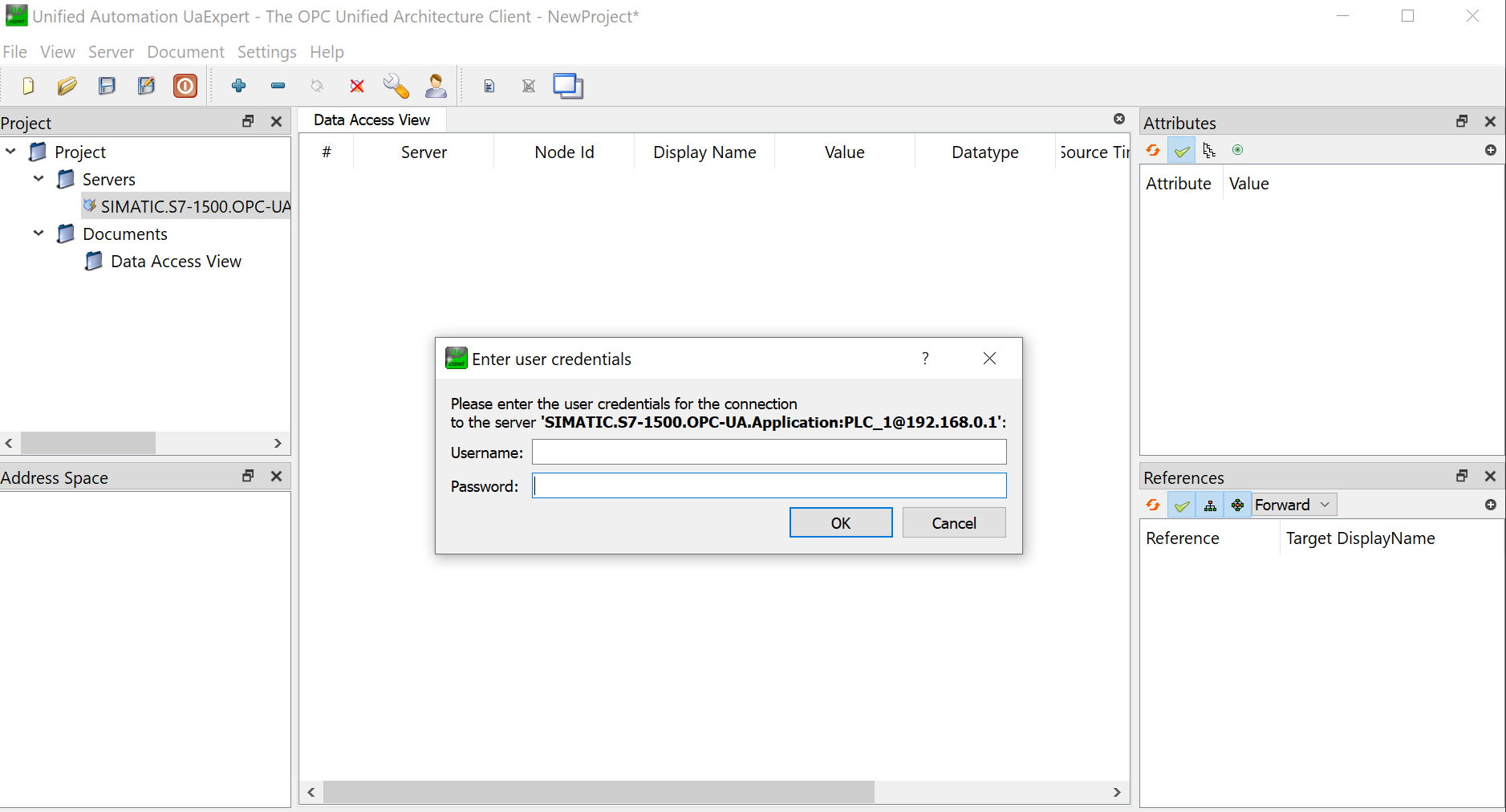
If we try to connect to the server now, it will ask for the login information.

2.4 Data logging

The OPC UA server can be used to monitor and manipulate data, and, most importantly, to track and log data. UaExpert offers the ability to track data from the PLC and export it.

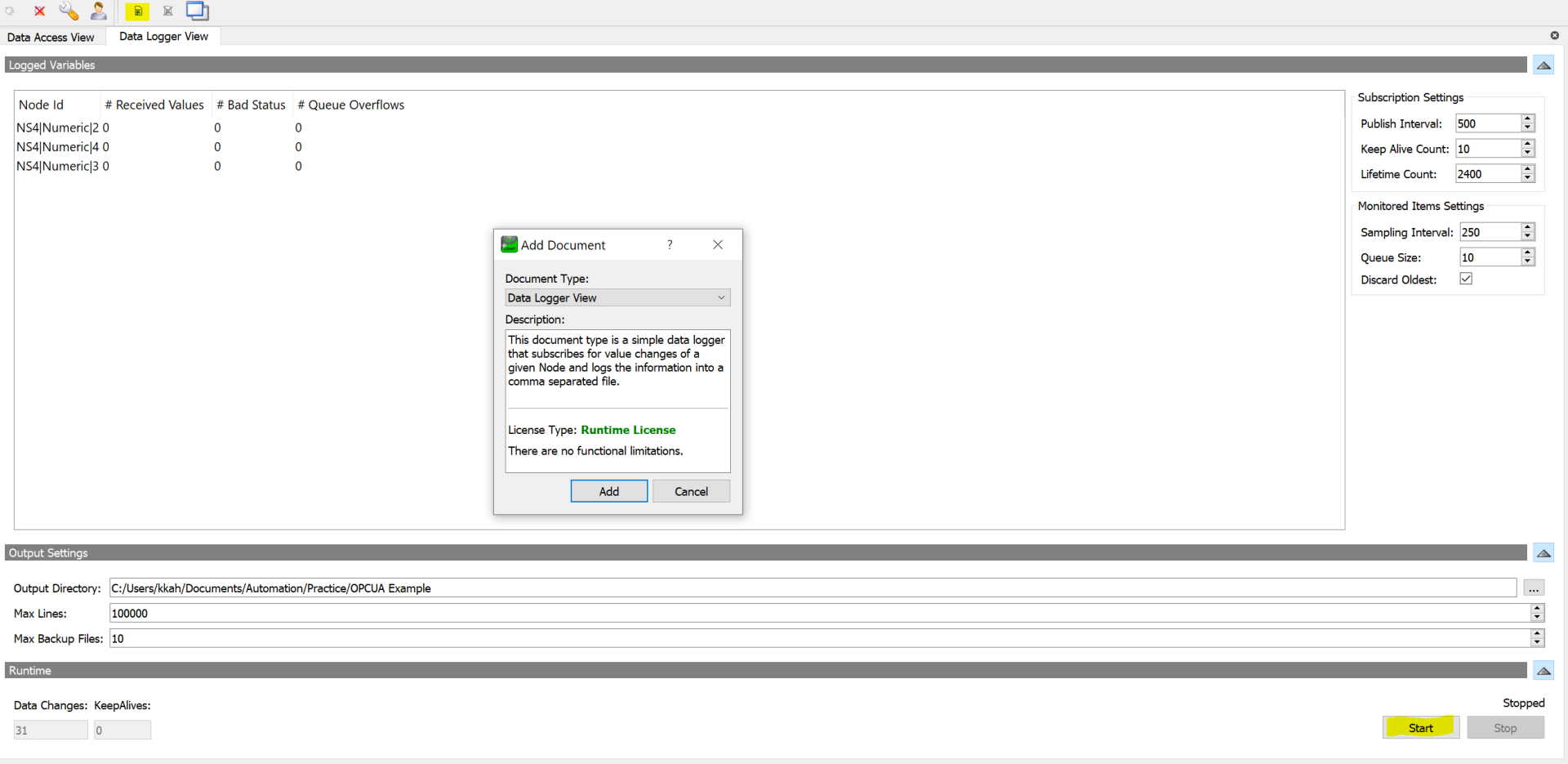
In the UaExpert app, click Add New Document and select Data Logger View.

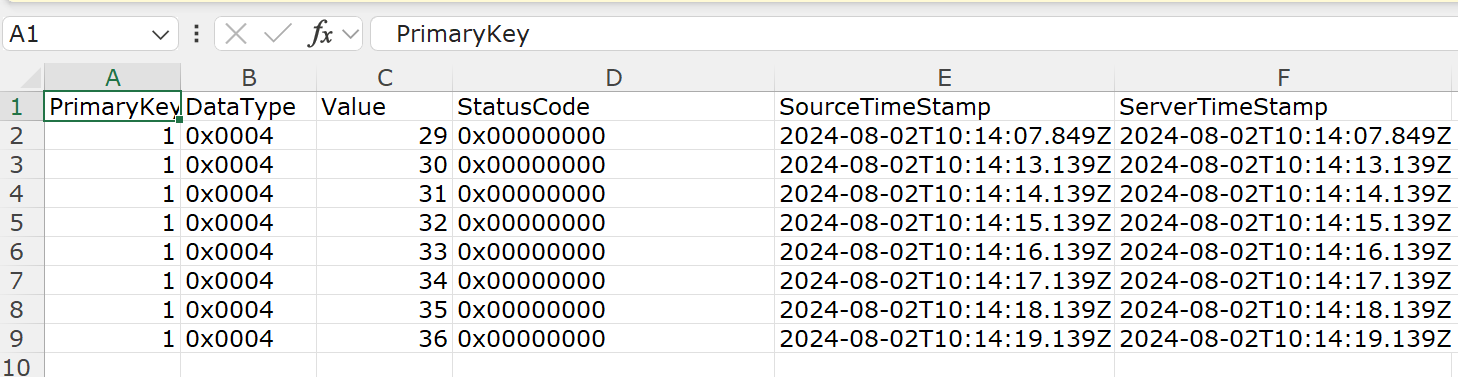
Logging will start as soon as the start button is pressed. After stopping the logging, a CSV file will be generated with the values of the selected variables.